 NexMask-官方博客
When an anonymous email isn't receiving messages, don't repeatedly click "resend" right away. The problem usually lies in one of four places: the website hasn't sent the email; the email is still queued in transit; the temporary email address has changed or expired; or the alias forwarding to your regular inbox ended up in spam, or forwarding was disabled. Check in the order below, and you'll typically find the cause within minutes.
First, spend thirty seconds confirming three things
- Verify the address. Compare the email you entered on the website with the inbox you currently have open, character by character. After a temporary email page refreshes, or you switch browsers or tabs, a new address may have been generated. Emails sent to the old address won't appear in the new inbox.
- Look at the website's feedback. After submitting, does the website show an error (e.g., "this email is not supported"), or does it say "sent"? An error means the address was rejected; if it says sent, continue troubleshooting below.
- Wait long enough. From the moment you click send, wait 5 to 10 minutes before drawing conclusions.
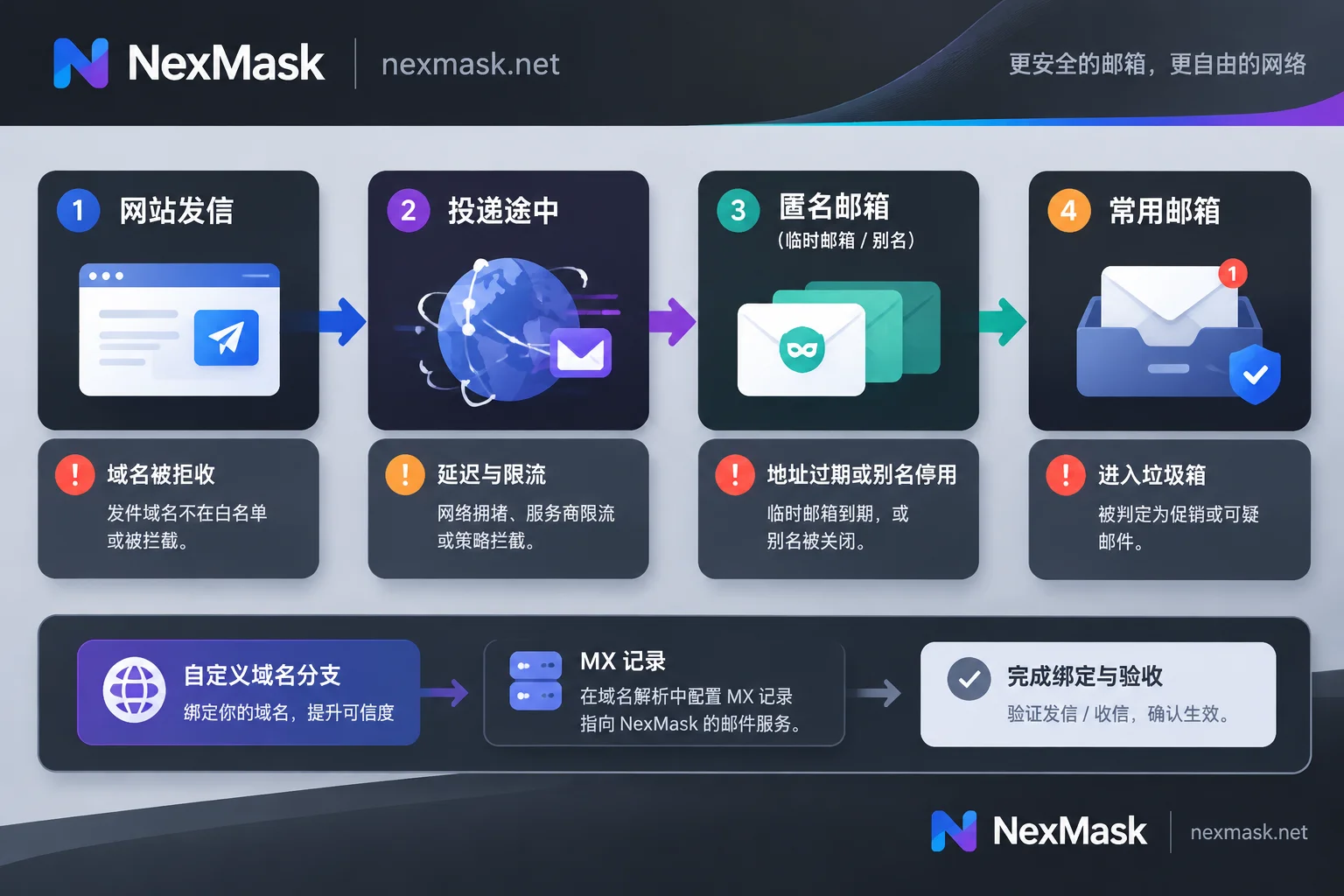
Case 1: Website rejects, or says sent but actually didn't
Many platforms maintain lists of disposable email domains. If your address matches such a list, some platforms will directly show that it's not supported in the form; others may still display "verification code sent" on the front end but not deliver it in the backend—in that case, no amount of waiting will help. Financial, payment, and other high-risk-control platforms most often do this, and public temporary email domains are most likely to be blocked.
How to tell: If you've waited ten minutes and received nothing, try a different domain address, such as switching from a temporary email to a long-term alias. If the new address receives the email, it's almost certain the original domain was blocked.
What to do: Waiting and resending won't solve it; you'll need to switch address types. See "Which address to switch to" at the end. For a complete approach to handling rejection, refer to What to Do When a Temporary Email Is Rejected.
Case 2: Email is on the way, just slow
The sender may have a sending queue, or may limit sending frequency to the same address. Some mail servers also use greylisting: the first delivery attempt is temporarily rejected, and the server automatically retries after a few minutes. So verification codes arriving 1 to 10 minutes late are not uncommon.
The most important thing to avoid here is repeatedly clicking "resend." Multiple requests in a short time can trigger rate limiting, making subsequent verification codes fail to send; even if several arrive, usually only the last one is valid.
Recommended approach: click once and wait patiently; if still nothing after ten minutes, resend once; if still nothing, go back to Case 1.
Case 3: Temporary email address has changed or expired
Temporary emails have a validity period, after which the entire mailbox is destroyed. If the email is sent after expiration—for example, you registered long ago and then triggered verification or notification—the original address no longer exists, and the email can neither be received nor recovered.
While waiting for the verification code, keep the temporary email page open; don't refresh or close it. Before getting the code, confirm the address hasn't changed. If it has already expired, see What to Do When a Temporary Email Expires.
If you'll need to log in, change password, or recover this account later, it wasn't suitable for a temporary email in the first place. Switch to a long-term alias directly.
Case 4: Alias forwarded, but not visible in your regular inbox
When using a long-term alias, the email is first sent to the alias, then forwarded to your regular inbox. There are two common bottlenecks in this chain.
- Your regular inbox sorted the email into spam. Forwarded emails go through an intermediary, and providers like Gmail and Outlook may evaluate SPF/DKIM more strictly, or filtering rules may misjudge. Check your regular inbox's Spam/Junk folder; if found, mark as "not spam," or create a filter rule for this alias address—subsequent emails will usually go to the inbox. For more detailed troubleshooting, see Temporary Email in Spam, which explains each segment of the forwarding chain.
- The alias itself isn't forwarding. Go to the alias management panel and check if you disabled this alias. Some services also automatically pause forwarding when bounces or risk control occur. During deactivation or pause, incoming emails are discarded or held, not forwarded to your regular inbox. After re-enabling, have the website send again.
Also, confirm that the forwarding target is the correct regular email address.
Case 5: Custom domain, sender directly bounces
When using your own domain for aliases, if MX records are missing, incorrect, or DNS changes haven't fully propagated, the sender's server will directly bounce, commonly with Recipient address rejected. The website may show a send failure, or nothing at all.
How to check: Run nslookup -type=mx 你的域名 in the terminal and see if the returned MX records match what your service provider requires. If you recently changed DNS, propagation takes time—minutes or longer, depending on the original record's TTL. Test again after propagation.
After checking, which address to switch to
If the problem is with the address type itself—such as being rejected, or the account needs long-term receiving—choose based on purpose:
- One-time test, glance at content and never use again: A temporary email is enough. It requires no registration, no phone number, and self-destructs upon expiration. Prerequisite: the platform doesn't block disposable domains and you won't need to receive emails for this account later.
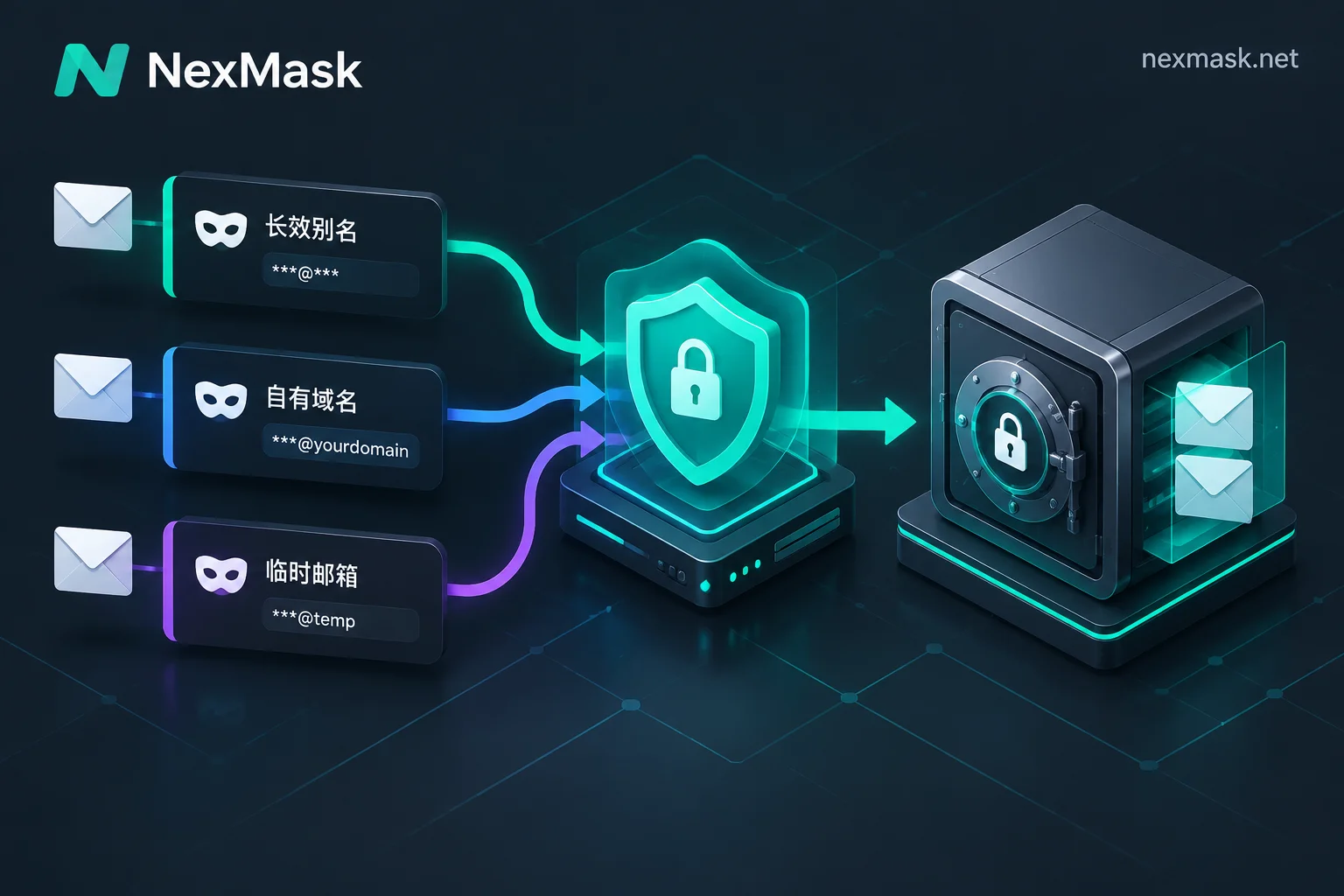
- Accounts you'll log into, change password, or recover later: Use a long-term alias. Assign one per website; it can receive emails throughout its validity, forward them as-is to your regular inbox, and you can reply as the alias. If a website starts sending spam, just disable its corresponding alias.
- Public alias domains also blocked: Switch to an alias bound to your own domain. Your domain isn't on public disposable domain lists, so it's usually less likely to be identified and blocked, but not guaranteed to be accepted by all platforms. A few platforms only accept addresses from mainstream email providers; for those, you can only register with your regular email.
On NexMask, you can get one at the Long-term Alias page; the free plan includes one alias. To use your own domain, set it up on the Custom Domain page. This is a membership feature; after adding MX records, it supports catch-all for any prefix, the domain always belongs to you, and can be migrated out.
After setup, first send a test email from an unimportant website to confirm forwarding works and your regular inbox doesn't block it as spam, then use it to register important accounts.



Comments(0)